


For any newly installed on premise SAP product, you need to register your system on SAP support portal. The system registration required license keys before you can use the product. License keys are associated with a system on your landscape, and therefore you need to first select a system and then manage its license key.
1. Launch the SAP License Key Application from this URL, https://launchpad.support.sap.com/#/licensekey. If the URL is not working, please use “google” to search for keyword “sap license key”.
2. There are 2 options here, either you search from the Customer, Product and Installation Number or you can directly search by Installation Number / System Number (you can use direct search by looking at the installed SAP system in your existing landscape). Now, hit the search button.

3. Click on the + button.
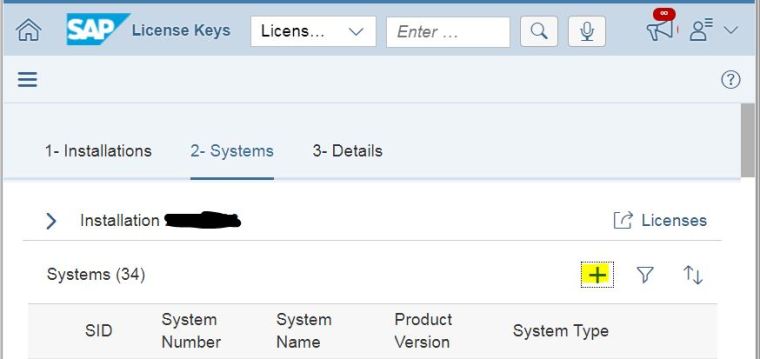
4. Depending on your installed product, select and define your newly SAP system details ie Product, Version, Usage Type etc.

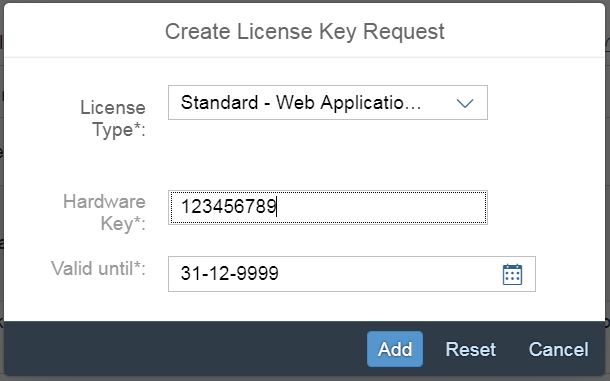
5. Next step is to create the license key. Define your License Type from below selections. We will go for Standard – Web Application Server ABAP or ABAP+JAVA. Enter your Hardware Key and leave the validity to default value. Click Add.
Standard – Web Application Server ABAP or ABAP+JAVA
J2EE-Engine – Web Application Server JAVA
Maintenance Entitlement
Portal – Enterprise Portal 5.0 / 6.0 (up to SP8)
6. The process will auto generate 2 types of license to your (Standard and Maintenance). Select both and click on Generate.
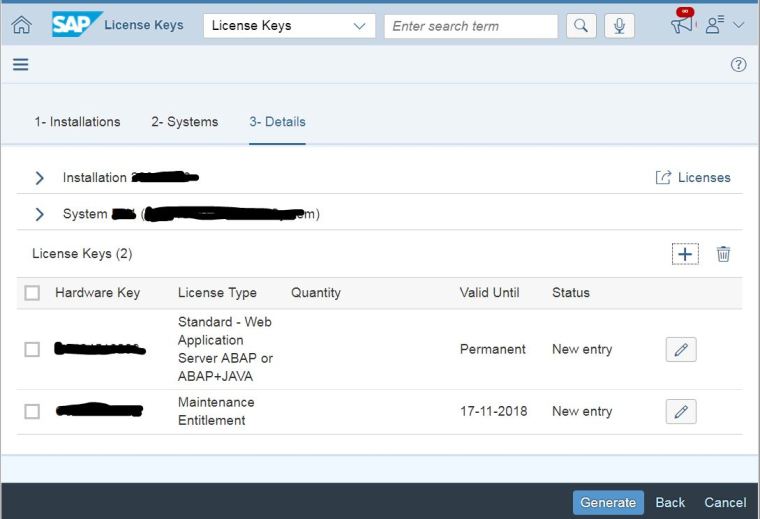
7. Once the keys are generated, you can obtain it via direct download or through email.
8. Finally, install the license key into your SAP system. Your system is now available in SAP support portal and to your users.


