


The SQL Monitor allows the tracing of all SQL statements executed by running ABAP applications. The SQL Monitor trace contains aggregated performance indicators (number of executions, execution time, number of effected rows, and so on) for all executed OPEN SQL and native SQL statements. In contrast to the standard Performance Trace (transaction ST05), the SQL Monitor enables you to perform such traces even over a longer period of time.
In addition, you can expand the scope of the analysis to finding system-wide hotspots. Other than for mere DB monitoring, the reference to the ABAP context is always retained: For each SQL trace record, the entry point of the responsible request (transaction code, submitted report, RFC function module, and so on) is stored as well. This provides a first connection from the SQL statement to the respective business process.
On the basis of the data records collected by the SQL Monitor, the SQL Performance Tuning Worklist (transaction SWLT) allows you to derive more sophisticated conclusions as to potential performance improvements.
The SQL Monitor provides two different transactions:
- Transaction SQLM targets administrative tasks
- Transaction SQLMD serves for data record analysis.
Prerequisites
- In order to use the functionality of these transactions, you need in the relevant system:
- As a minimum, display authorization profile for object S_DEVELOP (activity:03)
- Authorization profile for object S_ADMI_FCD with value SQMD for read access to SQL Monitor data
- Authorization profile for object S_ADMI_FCD with value SQMA for SQL Monitor administration
- The report RSQLM_UPDATE_DATA should run periodically (for example, once per hour) in the relevant system. It makes the data collected by the monitor available for read access.
Monitor Administration – Transaction SQLM
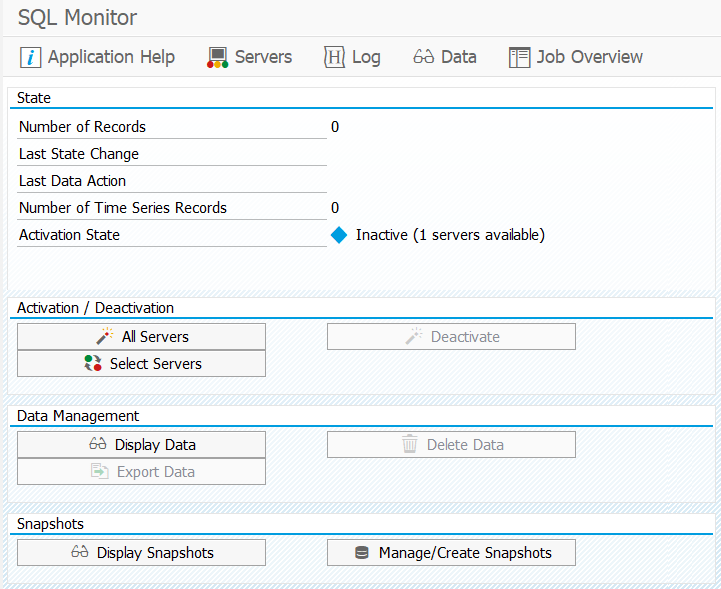
- Getting Server Status Information
- For all server instances of an ABAP system, you can view the status information as to whether or not SQL Monitoring is active.
- Changing Server Status
- For each individual server instance, you can change the status by activating or deactivating the recording for that very server.
- Activating All Servers
- Without making any server selection, you can activate all server instances of a system for SQL monitoring.
- Deactivating Monitoring for All Servers
- Without making any server selection, you can deactivate the runtime check monitoring for all server instances of a system using the Deactivate button.
- Deleting SQL Monitoring Data
- In one single step you can delete all the SQL Monitor recordings that exist in the system (Delete Data button).
- Navigating to Data Selection for Analysis
- Starting from the administrative view, you can navigate to transaction SQLMD using the Display Data button.
- Working with Snapshots of SQL Monitor Data
- You can either use snapshots that already exist in the system for SQL monitoring data or, if required, create new ones.
Monitor Data Analysis – Transaction SQLMD
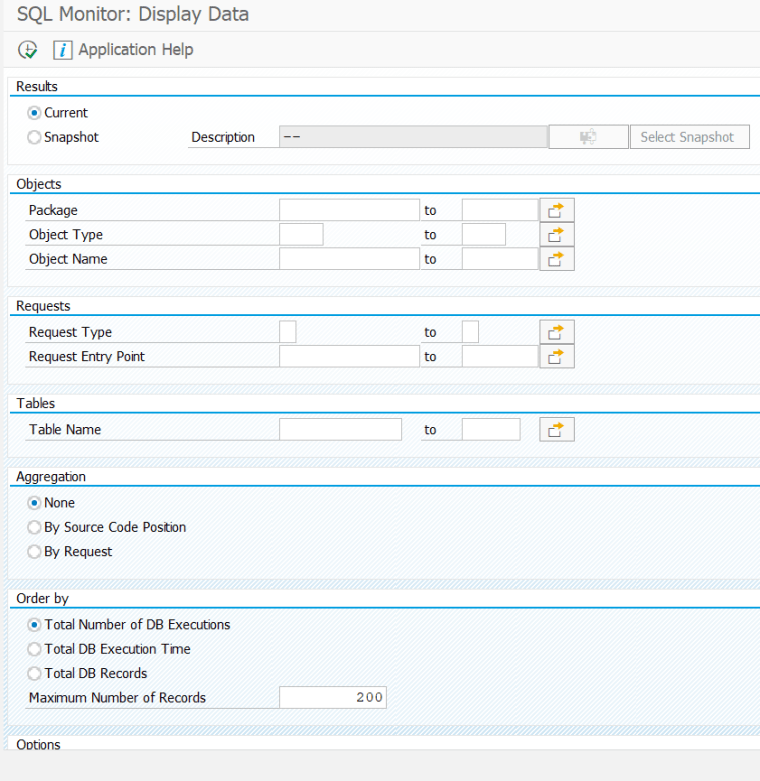
- Data Source Selection
- You can decide which data source (snapshots or recording of the running system) you want to use for data analysis.
- Options for Object Selection
- You can select development objects that are suitable for analysis of SQL monitoring data using various criteria. For example, you can limit the objects to a particular set of packages or a particular object type.
- Options for SQL Monitoring
- For your analysis, you can determine the request entry point of the processes or DB operations or even limit the scope to individual database tables.
- Options for Results View
- For displaying data results, you can also specify aggregation and ordering options.
Procedure – Main Steps
The typical procedure for working with SQL Monitor tools involves the following steps:
- Launch transaction SQLM.
- On the initial screen, check the status of the servers in the current system.
- Activate individual server instances – if required.
- Choose Display Data (launches transaction SQLMD automatically).
- Specify the options for the data source, the object selection, the SQL monitoring data, and for displaying the findings.
- Choose Execute (F8).
- On the SQL Monitor Results screen, identify and analyze the performance hotspots.


