


In this article, we are going to provide the steps on how to request the SAP HANA database license.
Our requirements are like below,
– SAP HANA database installed.
– SAP Business Suite system (running on SAP NetWeaver) installed.
We need to register and apply 2 systems for above requirements. Meaning, SAP HANA database and SAP Business Suite will have their own license keys.
Steps
1. For SAP application server (Business Suite, NetWeaver) – Do refer this article How to Register New SAP System in SAP Support Portal. We will concentrate on SAP HANA database licensing.
2. Go to the SAP license key application link. This will be https://launchpad.support.sap.com/#/licensekey/wizard. Use “google” if the link is not working.
3. Search the installation number or enter the installation/number directly.

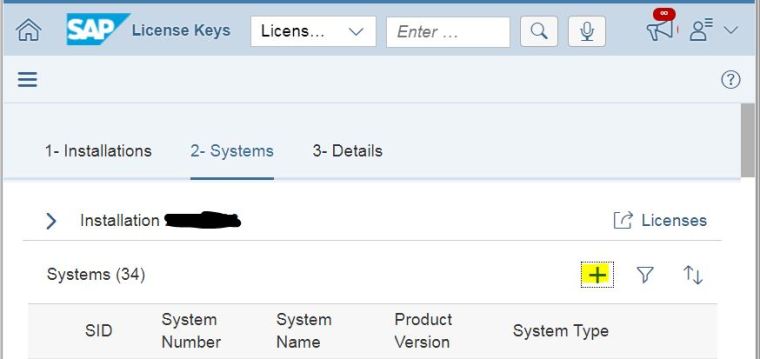
4. Click on the + button to add new system.
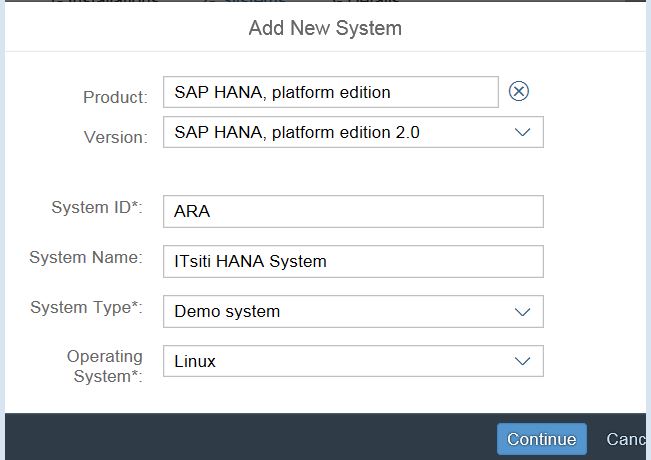
5. Define the system specifications, Product will be SAP HANA, platform edition, Version, System ID, Name, Type and OS.
6. Ignore below warning message and click on Create New System.
Warning
A System with ID ‘ARA’ already exists
You are about to create a new system with a System ID you have already used on
this installation.SAP Business Suite
You may encounter an error when you installing the license key because license
keys are tied to the System ID you specify in this step, and you have already
used this System ID for a previous license key request
(see SAP Note 836348 for more information).SAP HANA
Please note that you need to request two separate System IDs to get the
correct license keys for• your SAP Business Suite system (SAP NetWeaver/ERP) and
• your SAP HANA system (see SAP Note 1644792 for more information).SAP Business Objects/SAP Sybase
It is recommended but not mandatory to use a unique System ID for each new system.
If you still want to use this duplicate System ID, click the “Create New System”
button. Otherwise, click “Cancel” and enter a unique System ID.To edit the existing system that uses this System ID
(e.g. Hardware Key change), click “Cancel”, select the existing system from the
list and select “Edit”.
7. Click + to add new license key. Enter below information, Hardware Key and Quantity. Leave validity to default value. Click to Add.

8. Select the license key and click on Generate.

9. Next, you can download or send the license through email. For easiest and fastest way, just download it.
10. Final step, install the HANA license.
Reference
2213293 – How to request SAP HANA license keys for HANA Studio (HANA database) – SAP ONE Support Launchpad
1644792 – License key/installation of SAP HANA


