


Development namespaces enable customers to develop R/3 enhancements and solutions without having to agree on naming conventions with third parties. Additionally, they can deploy their enhancements and solutions in any system around the world without the risk of name conflicts. SAP partners and customers can exclusively reserve and use development namespaces as from R/3 Release 4.0. SAP allocates namespaces centrally to ensure they are exclusive. Partners and customers can only develop in reserved namespaces if their system includes a namespace-specific license key.
UPDATE: You can refer to the SAP Note 2006427 – How to request a SAP Development Namespace – SAP ONE Support Launchpad for the latest steps obtaining the SAP development namespace.

Note:
• Please reserve accepted namespaces by using function “Reserve an accepted namespace”. Accepted namespaces that are not reserved will be declined after a certain period of time.
• To request, change, reserve, or check the status of a namespace, you require the Reserve Namespaces authorization. To generate a key for a namespace, the Register SSCR Keys authorization is necessary.
Obtaining & Using a Unique Namespace
There are four steps needed to acquire and begin using a unique namespace. The first three steps are performed on the SAP Support Portal at this address : https://websmp104.sap-ag.de/namespaces
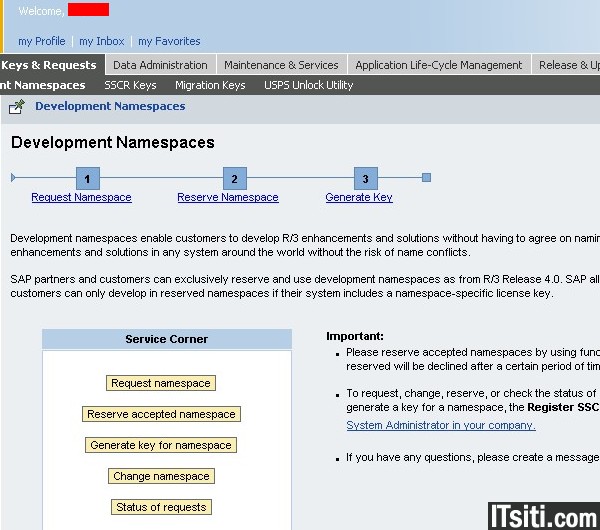
This document describes the application process you’ll need to use to request namespaces for both ABAP, and non-ABAP development. Note that steps that are specific to ABAP or non-ABAP are highlighted.
Step 1 : Requesting a New Namespace
This procedure shows how to reserve namespaces for ABAP and non-ABAP developments, and for your NetWeaver Name Server:
1. Choose Request Namespace.
2. In Namespace, enter the namespace or the name of the SAP NetWeaver name server that you want to request.
3. In Description, enter a brief description for this namespace. (Note that if you are about to request a namespace for ABAP developments only, or SAP Business One only, skip steps 4 and 5)
4. If you are requesting a namespace prefix for development objects based on the NetWeaver platform, select SAP NetWeaver Name Server and enter the name of your name server in Name of the Name Server. (Note, if you reserve a namespace prefix for the name of your NetWeaver Name Server, enter the same value in the field Name of the Name Server as in step 2)
5. If you are requesting namespaces for development objects used for automatically generated objects, select Object Generators.
6. From the list box, select the installations for which you want to activate this namespace.
7. Choose Create Request. A message appears informing you that your request was created. SAP will usually respond to your request within 3 working days.
Step 2 : Reserve an Accepted Namespace
After requesting a namespace the request will be checked by SAP. If the preconditions are fulfilled, the status will be set to Accepted. Only accepted namespaces can be finally reserved within this function.
1. Choose Reserve accepted namespace.
2. Click on the namespace you are interested in.
3. Select I Agree, to accept the namespace agreement.
Step 3 : Generating Keys for a Namespace
After you have reserved your namespace, you can generate a developer key and a repair key from this namespace for all installations that have been released (see Activated Installations). Note that this procedure is not relevant for non-ABAP developments. Note that you must have the REGISTER SSCR KEYS authorization object which your SAP system administrator receives by default.
1. Choose generate key for namespace.
2. Click on the namespace for which you want to generate a key.
3. Select the installation you require, and then choose generate keys for selected installations.
Developer key: the developer key is used for releasing the namespace. It must be entered in your system before you can start the development in the reserved namespace.
Repair key: If you deliver add-on developments as an SAP partner, you can authorize your customers to make changes to your development namespace by allocating a repair key.
Change an Already Reserved Namespace and External Assignment
Note that this function is only available for already reserved namespaces.
1. Choose Change Namespace.
2. Click on the namespace that you want to change.
3. You can change the description of the namespace and the flag Object Generator.
4. In Select Installations, mark the installations for which you want to activate this namespace.
5. Choose Save changes.
Note that you can additionally assign the namespace to an outside company via function external assignment. Be aware that only the outside company can generate the relevant keys.
Checking the Status of a Namespace Request
1. Choose Status of Requests.
2. Click on the particular namespace that you are interested in.
Step 4 : Register the namespace on your development system
Step four is performed on your development system using transaction code SE03. In this transaction, under the Administration folder, you want to select Display/Change Namespaces.

The screen Display View “Repository Namespaces“: Overview appears. Only those namespaces relevant to you appear in this maintenance view.
1. To maintain the namespaces, choose Table view > Display > Change. Confirm the information box.
2. To enter new namespaces, choose New entries. Detail maintenance appears.
3. Fill out the fields as follows. Save your entries each time.
• Namespace : Enter the namespace ID that you have reserved. It begins and ends with a slash (“/”) and has a maximum length of 10 characters.
• Namespace role : Keep the default “P” if you want to develop in this namespace. The role of the namespace can have one of two values:
• + “P” (producer) : Originals are created when you create objects. Choose this setting in the development system of the namespace owner to enable development work if there is a valid development license key.
• + “C” (recipient) : Choose this setting if the namespace (namespace entry and the objects in the namespace) have been imported into this system. You can use the functions installed with the import. You cannot develop in this namespace in the SAP System. You can make repairs if you have a valid repair license key . When you create objects, the original system is set to “SAP”.
• Develop.license : Enter the 20-character development license key given to you by SAP for your development system. You cannot transfer development license keys to other SAP Systems. Instead you need a new key for each installation number.
• Repair license : If you enter the 20-character repair license key given to you by SAP for your namespace in your development system, then it is imported into all subsequent systems, unlike the development license key. In subsequent systems you can allow repairs by setting the namespace role to “C”. Repair license keys are not installation-specific. The namespace owner can deliver the keys or pass them on for solving errors if there are any serious problems. If you do not want your repair license key to be delivered to a third-party, delete the repair license key before the delivery export.
• SSCR popup : This flag is only relevant to SAP namespaces (repairs require an object license key). You cannot set this flag in a customer system.
• SAP standard: This flag is only relevant to SAP namespaces (standard SAP applications handle objects in a standard SAP namespace differently to other namespaces). You cannot set this flag in a customer system.
• Only gen. objs : This flag is only relevant to SAP namespaces (namespace reserved for applications that generate objects). You cannot set this flag in a customer system.
• Last changed by : You cannot fill out this field yourself. It is automatically filled with the name of the user who is making the license entry.
• Date : You cannot fill out this field yourself. It is automatically filled with date on which the namespace is entered.
• Short text : Enter a short text for the namespace. You can include the following information:
• Owner : Enter the namespace owner registered by SAP.
Result
Your changes are recorded in a change request. When you transport this request into all subsequent systems, the namespace will also be transported. If there is a repair license, this is also transported. However, the development license is not transported.


